Version Control Like a Pro
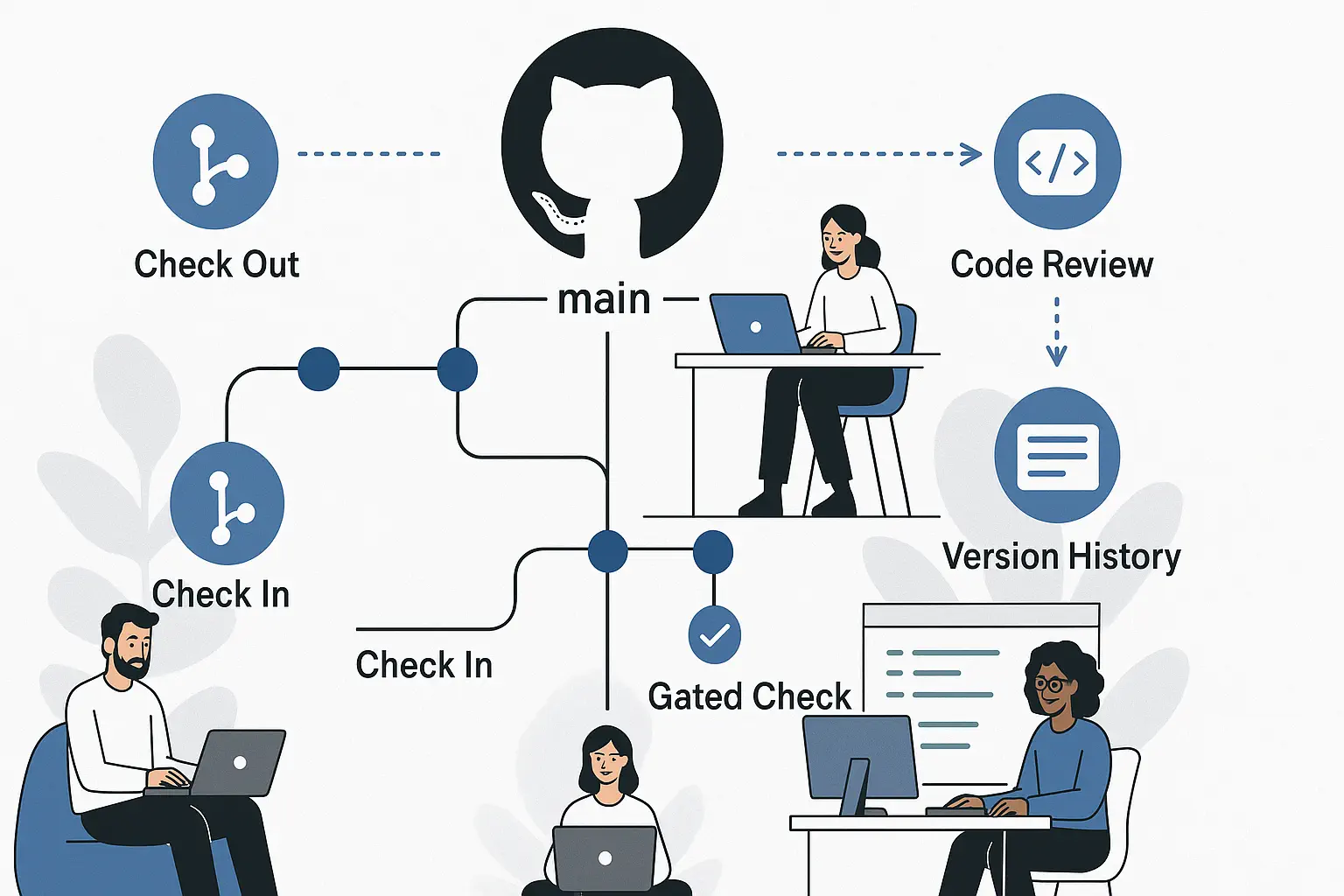
Whether you're working solo or in a team, version control is the backbone of reliable software development. It helps track changes, collaborate efficiently, and reduce the fear of breaking code. In this blog, we dive into Git — the most popular distributed version control system — and how to use it like a pro.
🔧 What is Version Control?
Version control systems (VCS) allow developers to manage and track changes to source code over time. It enables collaboration, rollback, and historical tracking of every change made.
- Centralized VCS: One central server, e.g., SVN
- Distributed VCS: Everyone has a full copy — like Git
🚀 Getting Started with Git
Git is a distributed VCS where every developer has a local copy of the complete project history. This ensures speed, redundancy, and offline work capabilities.
# Initialize a repository
                      git init

                      # Clone a remote repo
                      git clone https://github.com/your-repo.git

                      # Stage & commit changes
                      git add .
                      git commit -m "Initial commit"

                      # Push changes to remote
                      git push origin main
🌿 Understanding Branches
Branches allow multiple developers to work independently. The main branch typically holds
production-ready code.
git branch feature-login– Create new branchgit checkout feature-login– Switch to itgit merge feature-login– Merge into main
⚔️ Handling Merge Conflicts
Conflicts happen when the same part of a file is modified in multiple branches. Git will ask you to manually resolve these. Here’s how to handle it:
# Attempt to merge branches
                      git merge feature-login
                      # If conflicts arise, Git will notify you
                      # Open the conflicted file and resolve conflicts
                      # After resolving, stage the file and commit
                      git add conflicted-file.txt
                      git commit -m "Resolved merge conflict in conflicted-file.txt"
# After resolving conflict
git add conflicted-file.txt
git commit📋 Best Practices
- Commit frequently with meaningful messages
- Use feature branches for isolated work
- Review code via pull requests
- Don’t commit secrets or sensitive files
- Use .gitignore to exclude unnecessary files
- Keep your branches up-to-date with
git pull - Use tags for releases (e.g.,
git tag v1.0) - Document your workflow in a CONTRIBUTING.md file
- Regularly backup your repositories
- Use descriptive commit messages (e.g., "Fix login bug" instead of "Update code")
🤝 Code Reviews and Pull Requests
Pull Requests (PRs) are not just for merging — they’re a chance to review, comment, and ensure quality. Encourage
peer reviews with constructive feedback.
Use tools like GitHub, GitLab, or Bitbucket to create PRs and discuss changes before merging.
Example PR workflow:
1. Create a feature branch: git checkout -b feature-login
2. Make changes and commit: git commit -m "Add login feature"
3. Push branch to remote: git push origin feature-login
4. Open a PR on your Git hosting platform
5. Request reviews from teammates
6. Address feedback and merge when approved
🛠 Common Git Commands
| Command | Description |
|---|---|
git log |
Show commit history |
git status |
See current state of working directory |
git revert <commit> |
Undo a specific commit safely |
git reset --hard |
Forcefully reset to a previous commit |
🔁 Git Rebase vs Merge
Merge: Creates a merge commit, keeps full history.
Rebase: Rewrites history, results in a cleaner log. Use with caution.
💡 Real-World Scenario
You're working on a feature branch while a teammate pushes changes to main. Always
git pull origin main into your branch to stay updated and resolve conflicts early.
Example:
1. You start on feature-login
2. Your teammate pushes changes to main
3. You run git pull origin main
4. Git merges changes into your branch
5. If conflicts arise, resolve them in your code editor
6. Stage and commit the resolved files
7. Continue working on your feature
8. When ready, merge your branch back into main
🧪 Try It Yourself
Practice your Git skills interactively: https://learngitbranching.js.org
❓ FAQ
git reset --soft HEAD~1 to undo the last commit but keep changes staged, or git revert HEAD to create a new commit that undoes the last one.
.gitignore file tells Git which files or folders to ignore and not track in the repository, such as build outputs or sensitive data.
git blame <filename> to see line-by-line authorship and when each line was last changed.
git filter-branch to remove it from history. Change any exposed credentials immediately.
🎯 Final Thoughts
Mastering Git doesn’t happen overnight, but understanding its core operations, commands, and branching strategies will help you collaborate confidently and recover from mistakes swiftly. Start practicing today — every great developer is also great at version control.
Download Git Quick ReferenceFor more in-depth learning, check out the official Git documentation: Git Documentation
Comments
Loading comments…